
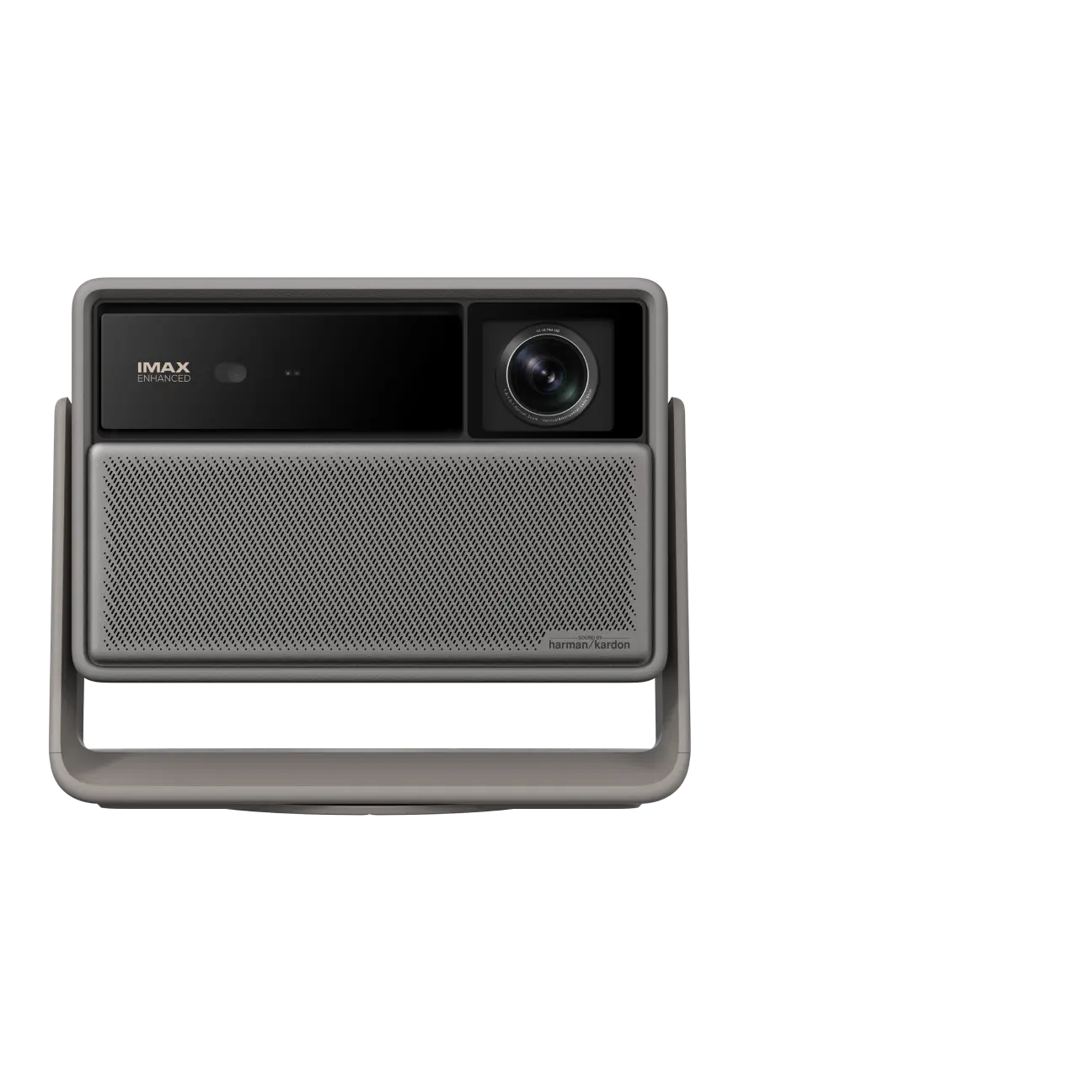
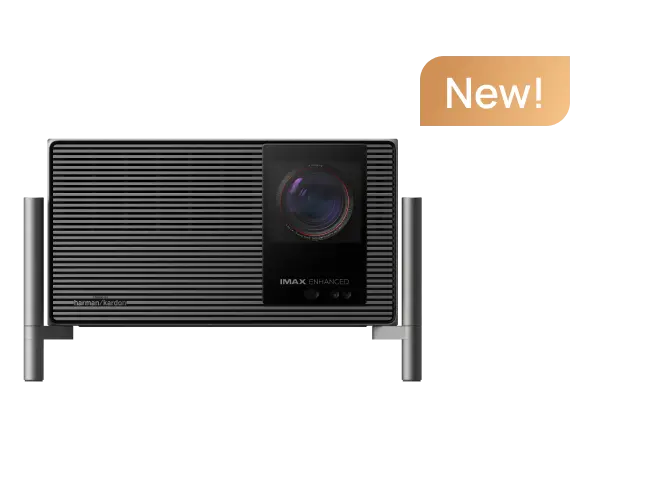
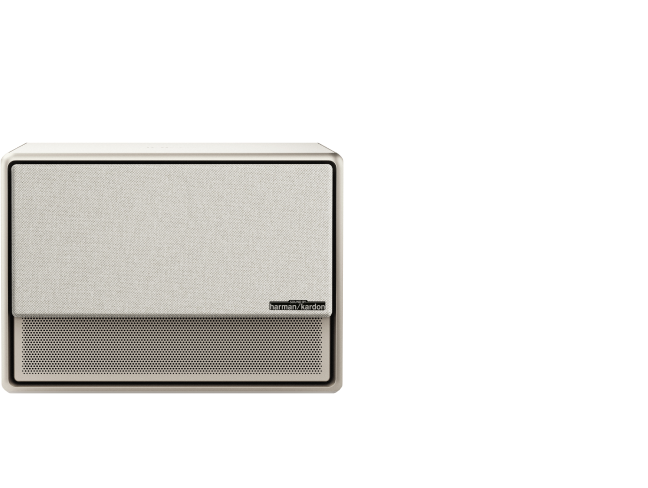




Want to watch TV shows, live sports, movies, or streaming apps on a much bigger screen? A projector can turn everyday TV viewing into a home theater experience, but the setup is not always as simple as plugging a TV directly into a projector.
The most important thing to know is this: in many setups, your TV is not the best source device. Most TVs are designed to receive video through HDMI, not send video out to another display. In most cases, you should connect the content source—such as a cable box, streaming stick, laptop, game console, or antenna tuner—directly to the projector.
Can You Connect a TV Directly to a Projector?
Sometimes, but not always.
If your TV has a true HDMI OUT, AV OUT, or supported video output port, you may be able to connect it directly to a projector. However, many modern TVs only have HDMI input ports. That means they can receive video from devices like cable boxes or streaming sticks, but they cannot send their own screen image to a projector through HDMI.
Also, an HDMI ARC or eARC port does not usually solve this problem. ARC/eARC is mainly used to send audio from a TV to a soundbar or AV receiver, not to send full video from a TV to a projector.
So, for most users, the better solution is:
Source device → Projector
Instead of:
TV → Projector
Best Ways to Watch TV on a Projector
There are several practical ways to get TV content onto a projector. The best method depends on what you want to watch and what devices you already use.
Method 1: Connect a Cable or Satellite Box to the Projector With HDMI
This is one of the easiest ways to watch live TV on a projector.
What you need
- A projector with an HDMI input
- A cable box, satellite receiver, or set-top box
- An HDMI cable
- External speakers or a soundbar, if you want better audio
Steps
- Turn off the projector and cable box.
- Plug one end of the HDMI cable into the HDMI output port on your cable box.
- Plug the other end into the HDMI input port on your projector.
- Turn on both devices.
- Use the projector remote to select the correct HDMI input.
- If there is no sound, check the audio output settings on the cable box or connect external speakers.
This method is ideal if you want to watch live channels, sports, news, or cable TV on a large screen.
Method 2: Use a Streaming Stick or Media Player
If you mainly watch Netflix, YouTube, Disney+, Hulu, Prime Video, or other streaming apps, a streaming stick is often the simplest solution.
Popular options include:
- Chromecast with Google TV
- Roku
- Amazon Fire TV Stick
- Apple TV
- Other HDMI streaming devices
Steps
- Plug the streaming device into the projector's HDMI port.
- Connect the streaming device to power.
- Turn on the projector and select the correct HDMI input.
- Follow the on-screen setup instructions.
- Connect the device to Wi-Fi and sign in to your streaming apps.
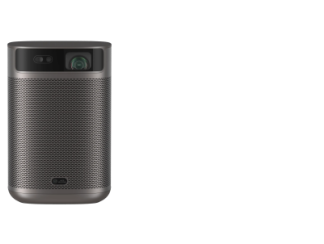
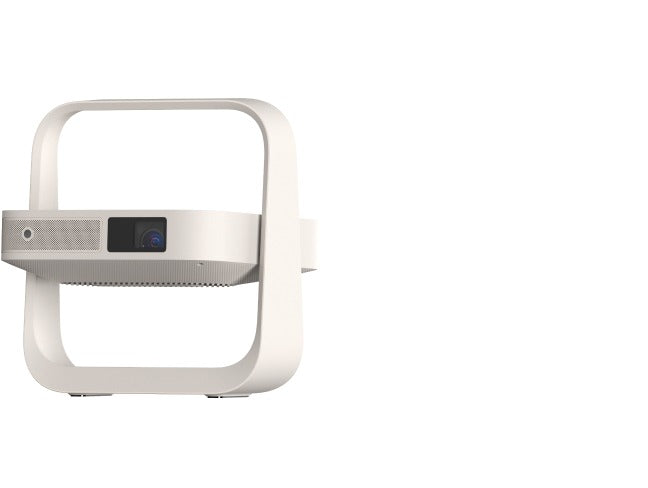
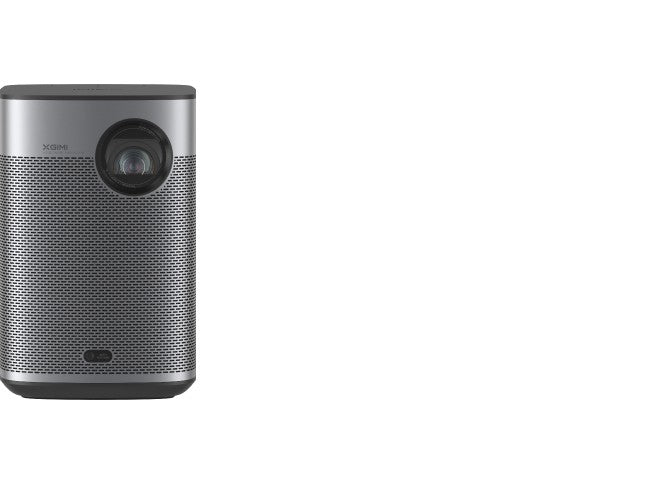
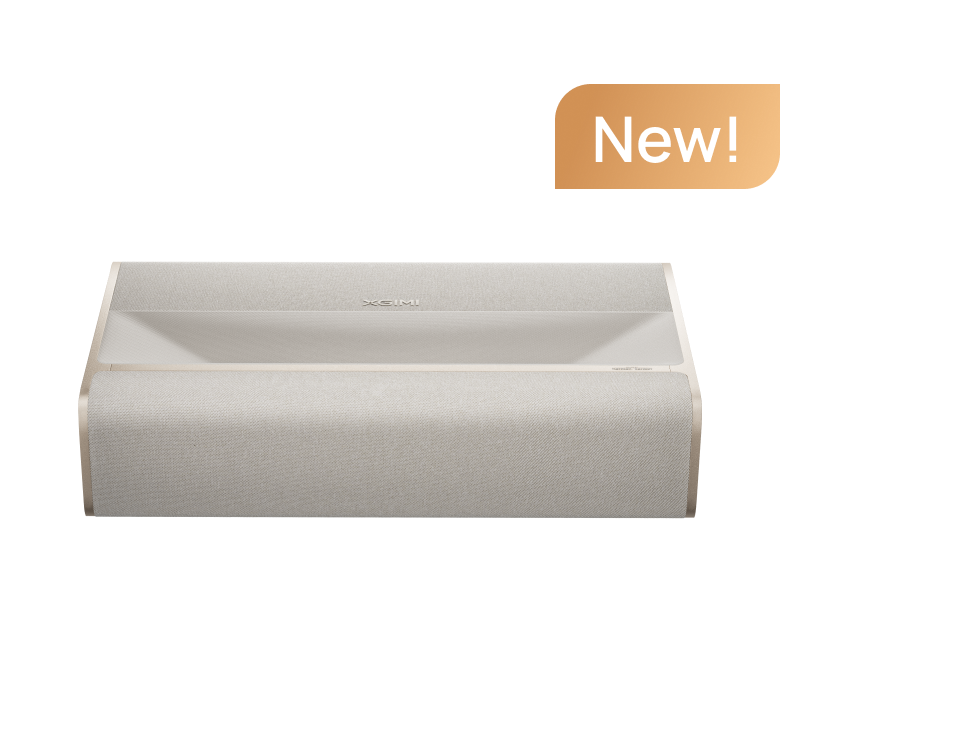
This setup works especially well for projectors that do not have built-in smart TV features. If you use a smart projector with built-in streaming apps, such as some XGIMI projectors, you may not need an extra streaming stick for everyday viewing.
Method 3: Use an HDMI Splitter to Show the Same Source on TV and Projector
If you want the same content to appear on both your TV and projector, use an HDMI splitter.
This is useful when you have one source device, such as a cable box or game console, and want to send the signal to two displays.
Basic setup
Cable box / streaming device / game console → HDMI splitter → TV + projector
Steps
- Connect the source device to the HDMI input on the splitter.
- Connect one HDMI output from the splitter to your TV.
- Connect the other HDMI output to your projector.
- Turn on all devices.
- Select the correct HDMI input on both the TV and projector.
For best results, choose an HDMI splitter that supports the resolution you need, such as 1080p or 4K. If you plan to watch 4K content, use a 4K-compatible splitter and high-speed HDMI cables.
Method 4: Use Wireless HDMI
Wireless HDMI is a good option when your projector is far from your source device and you do not want to run a long cable across the room.
A wireless HDMI kit usually includes:
- A transmitter connected to the source device
- A receiver connected to the projector
Steps
- Connect the HDMI transmitter to your cable box, laptop, or streaming device.
- Connect the HDMI receiver to the projector.
- Plug both units into power.
- Turn on the projector and select the correct HDMI input.
- Wait for the transmitter and receiver to pair.
Wireless HDMI can reduce cable clutter, but performance depends on distance, walls, interference, and the quality of the wireless HDMI kit. For gaming or fast-paced sports, a wired HDMI connection is usually more reliable — our overview of wireless and wired projector connections covers when each makes sense.
Method 5: Screen Mirror From a Phone, Tablet, or Laptop
Screen mirroring lets you display content from a mobile device or computer on a projector. This is useful for photos, presentations, web pages, or casual video viewing.
Common screen mirroring options include:
- AirPlay for Apple devices
- Chromecast or Google Cast
- Miracast for some Windows and Android devices
- Built-in screen mirroring on smart projectors
General steps
- Connect your phone, tablet, laptop, and projector to the same Wi-Fi network.
- Open the screen mirroring or casting option on your device.
- Select the projector or connected streaming device.
- Confirm the connection if prompted.
- Start playing or displaying your content.
Screen mirroring is convenient, but it may not be ideal for every app. Some streaming services limit mirroring because of content protection rules.
How to Connect Audio When Using a Projector
Video is only half of the setup. You also need to think about sound.
Many projectors have built-in speakers, but for a home theater setup, external audio usually sounds better.
Common audio options
- Connect a Bluetooth speaker to the projector
- Use the projector's 3.5mm audio output
- Connect a soundbar through HDMI ARC/eARC if supported
- Use an AV receiver for a full surround sound setup
- Connect speakers directly to the source device
If you are using a cable box, streaming stick, or game console, check whether the audio should come from the projector, the source device, or an external speaker system.
What Cables or Adapters Do You Need?
The right cable depends on the ports available on your projector and source device.
HDMI
HDMI is the best option for most modern setups. It carries both video and audio and supports HD and 4K signals.
VGA
VGA is found on some older laptops, TVs, and projectors. It only carries video, so you need a separate audio cable.
RCA or Component Video
RCA and component video are older connection types. They may work with older TVs, DVD players, or legacy cable boxes, but they are not ideal for modern high-resolution content.
USB-C to HDMI
Some laptops, tablets, and phones can connect to a projector using a USB-C to HDMI adapter. Make sure your device supports video output through USB-C.
Troubleshooting: Why Is My Projector Showing No Signal?
If your projector says "No Signal," try these fixes:
- Check the input source: Make sure the projector is set to the correct HDMI port.
- Check the cable connection: Unplug and reconnect both ends of the HDMI cable.
- Try another HDMI cable: A damaged or low-quality cable can cause signal issues.
- Restart both devices: Turn off the projector and source device, then power them back on.
- Check the source device: Make sure the cable box, streaming stick, or laptop is turned on and outputting video.
- Lower the resolution: If the projector does not support the source device's current resolution, change the source output to 1080p or another supported format.
- Avoid using the TV as the source: If you connected HDMI from a TV to a projector and nothing appears, the TV's HDMI port may be input-only. Connect the original source device directly to the projector instead.
FAQs
1. Can I connect a smart TV to a projector?
Only if the smart TV has a real video output port. Many smart TVs do not output their screen through HDMI. In most cases, it is better to connect your streaming device, cable box, or laptop directly to the projector.
2. How do I connect TV to projector with HDMI?
The most reliable method is to connect the HDMI output of your cable box, streaming device, laptop, or game console to the HDMI input of the projector. If you want the same content on both a TV and projector, use an HDMI splitter.
3. Can I wirelessly connect a TV to a projector?
You may be able to use wireless HDMI or screen mirroring, depending on your devices. However, wireless setups can have more lag or connection issues than wired HDMI.
4. Can I use a projector as a TV?
Yes. A projector can work like a TV screen when connected to a cable box, antenna tuner, streaming device, or smart TV platform. You may also need external speakers for better sound.
5. Does HDMI ARC send video from TV to projector?
Usually no. HDMI ARC/eARC is mainly for sending audio from a TV to a soundbar or AV receiver. It should not be treated as a normal video output for a projector.
Conclusion
The best way to connect TV content to a projector is usually not by connecting the TV itself. Instead, connect the original source device—such as a cable box, streaming stick, game console, laptop, or antenna tuner—directly to the projector.
For the simplest setup, use HDMI. For streaming apps, use a smart projector or streaming stick. For a cleaner room layout, consider wireless HDMI. If you want the same image on both your TV and projector, use an HDMI splitter.
With the right setup, your projector can turn everyday TV watching into a much larger and more immersive viewing experience.


