

Why Can’t I Watch Netflix On My Projector or TV?
By XGIMI Tech - 2026-03
Are you trying to screen mirror the Netflix content from your mobile device to your projector or TV, but all you get is a black screen? If Netflix works perfectly on your phone or laptop but not on your projector or TV, you’re not alone. Many users run into this issue. The reason usually comes down to DRM (Digital Rights Management) protection of Netflix, the compatibility, or connection settings.
This guide will help you understand the cause and lead you to solve the problem quickly.

Why Netflix Not Work on My Projector or TV?
1. DRM (Digital Rights Management) Protection
The most common reason is DRM (Digital Rights Management) protection restrict your screen mirroring, preventing unauthorized copying of its content. Netflix checks that both your device and your display support HDCP (High-bandwidth Digital Content Protection). If your projector or TV doesn’t fully support HDCP, Netflix may show a black screen or block playback—even if the app is installed correctly.
FAQ: Will HDMI Fix Netflix Black Screen Issues Caused by DRM?
Not necessarily. Netflix uses DRM and HDCP protection, which means every device in the playback chain must support HDCP, including the streaming device, HDMI cable, and the projector or TV. If any part does not support the required HDCP version, Netflix may still display a black screen even when connected with HDMI.
How to Fix
• Buy an external TV stick or streaming box (such as Roku, Fire Stick, or Apple TV) with a licensed Netflix app, and plug it into your projector or TV through the HDMI port.
• Use a projector or smart TV with the official Netflix app built into the streaming system, and download it from the app store.
2. Device Compatibility
Some movie projectors or smart TVs cannot run the official Netflix app because they haven’t been certified by Netflix. Even if the device runs Android or another smart system, without this certification, you may not be able to install the app or play videos at the proper quality.
Will Using HDMI Connection or AirPlay Still Work in This Situation?
If the DRM issue is not taken into account, usually the answer is yes. If your projector or TV cannot run the official Netflix app, HDMI or AirPlay can still mirror the screen from your phone or laptop. You will see the video, but playback quality may be lower, and some features like subtitles, 4K, HDR, or audio options might not work properly.
How to Fix: Try using screen mirroring or the two methods mentioned above.
3. Connection methods
If you tried casting from your phone or laptop and still see nothing, the issue could be in the connection itself. For example, when streaming from a laptop through HDMI, incorrect display settings or outdated graphics drivers may prevent Netflix from playing correctly.
How to Fix
• Ensure the projector / TV and your mobile device are connected to the same stable Wi-Fi network.
• Agree to the permissions popping up during the connection (Of course, you should read the terms carefully first and decide for yourself) .
• Update the app or reinstall it if necessary.
• If your HDMI connection isn’t working, check whether the cable is compatible and securely plugged into both devices.
How to Find Out What’s Causing the Netflix Issue? 4 Troubleshooting Steps
Before assuming the device is incompatible, try these basic troubleshooting steps. If you still can’t resolve the issue, contact the customer support team for your device.

1. Restart your devices
Turn off your projector or TV, streaming device, and router. Restarting can resolve temporary software issues.
2. Check Your HDMI Connection and Wi-Fi Network
Ensure the HDMI cable supports HDCP. If possible, try another cable or a different HDMI port. Make sure your projector or TV, and the casting device are connected to the same stable network.
3. Update Software or Firmware
Make sure your projector, TV, or streaming device is running the latest system update.
4. Test another Streaming Method
If you are casting from a laptop or phone, try a different method such as screen mirroring or using a streaming stick.
How to Watch Netflix on Projector? 3 Solutions That Work
If troubleshooting does not solve the issue, there are several reliable solutions.
For watching Netflix on XGIMI projectors, please read this step-by-step guide <How to Watch Netflix on Projector? >,or contact the support team.
1. Use a Certified Streaming Device
Devices such as a streaming stick or media box often have official Netflix support and better compatibility with projectors and TVs.
2. Cast or Mirror from Another Device
Many smartphones and laptops can cast Netflix directly to a projector or smart TV through wireless casting technologies.
3. Check Device Compatibility before Buying
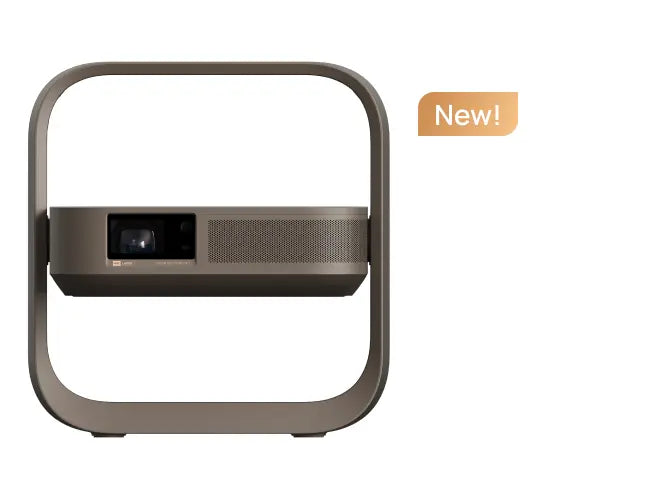
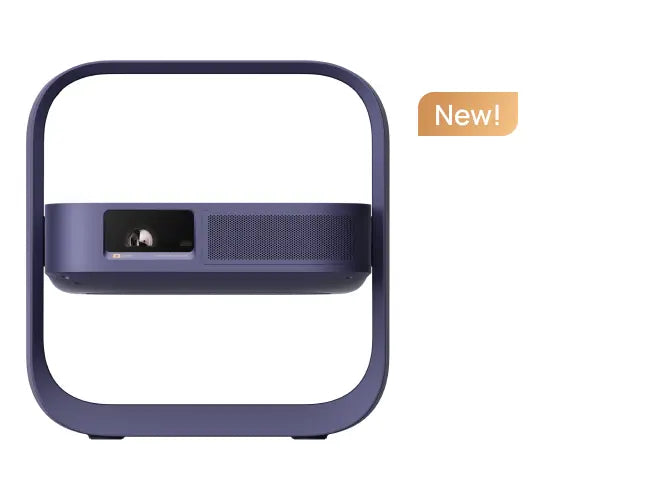
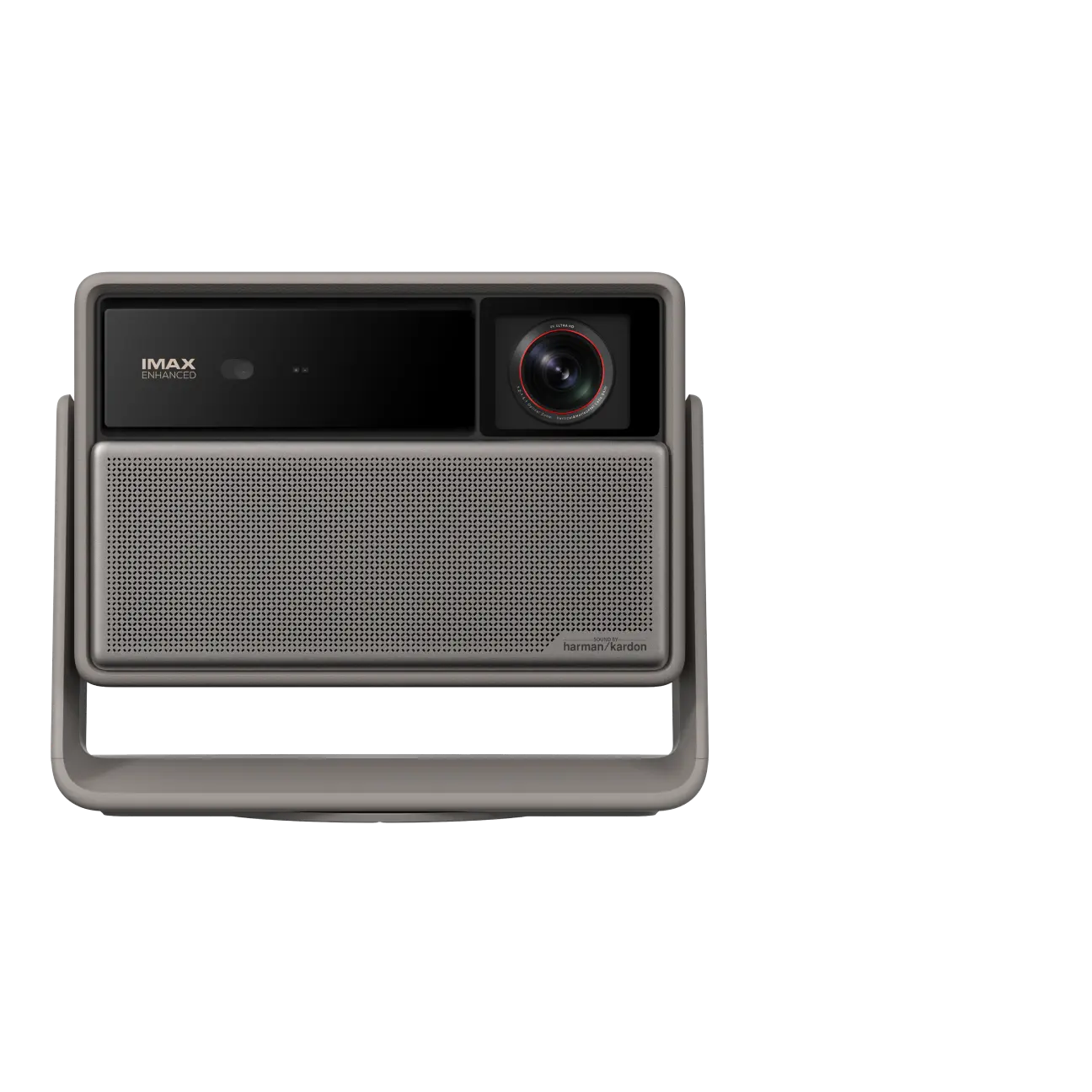
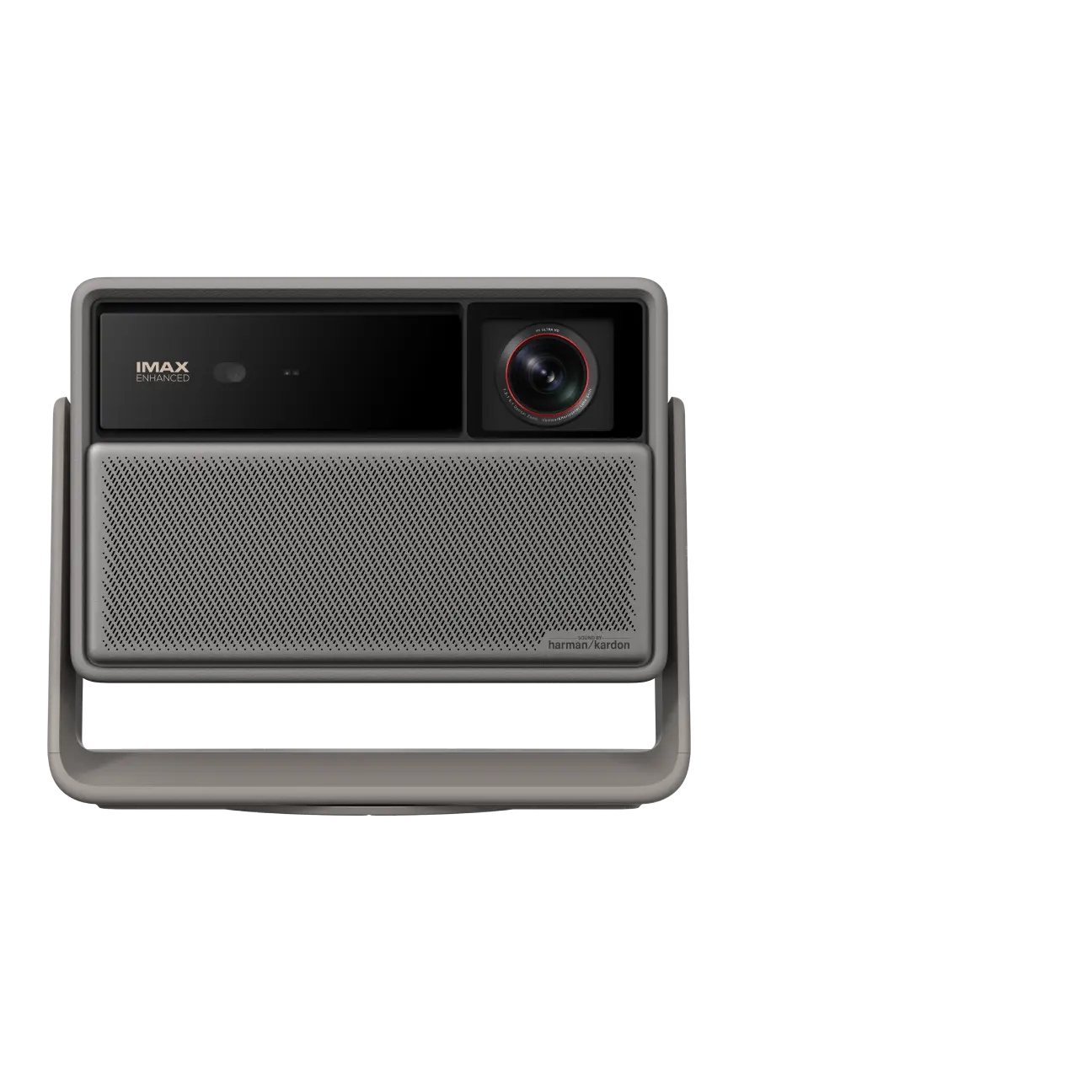
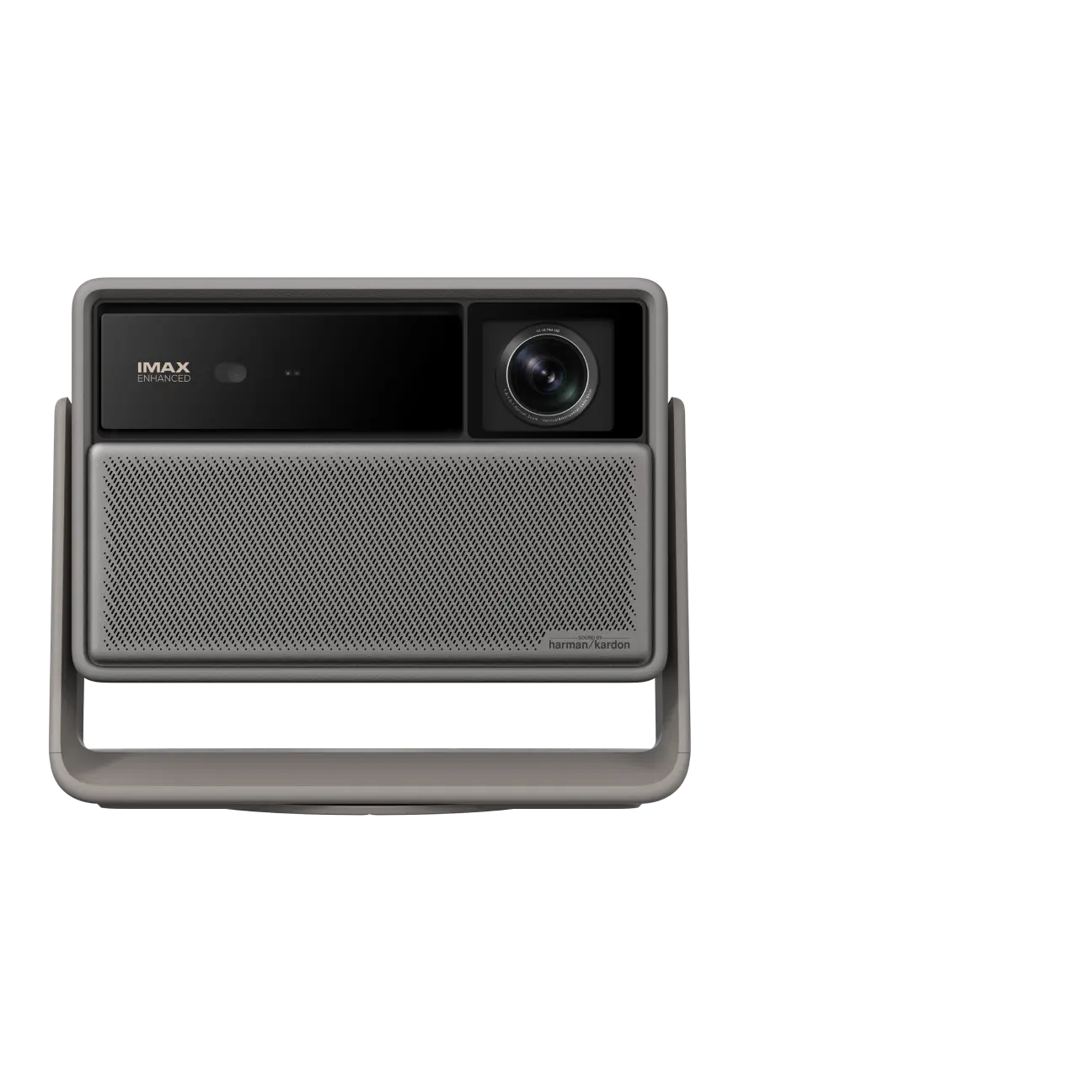
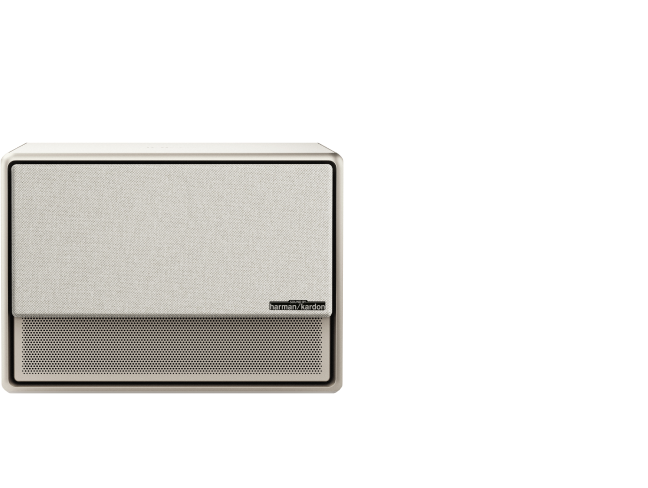
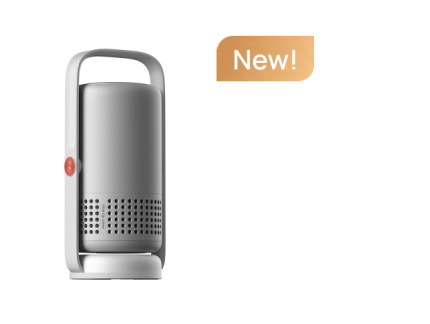
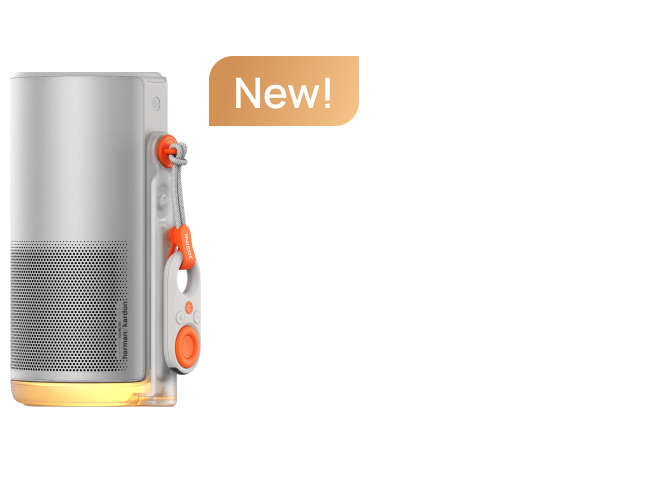
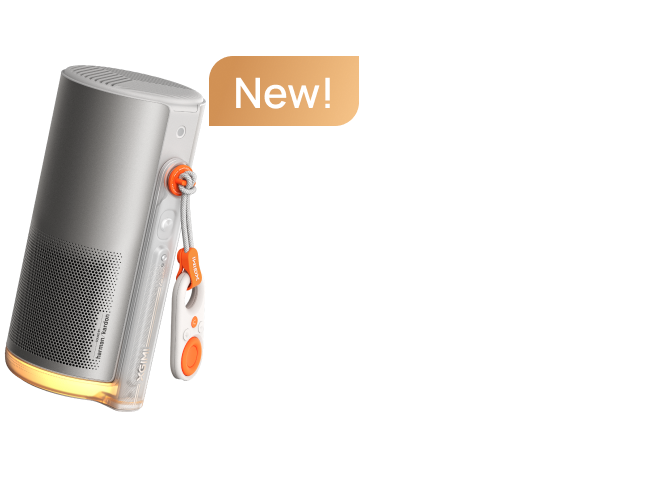
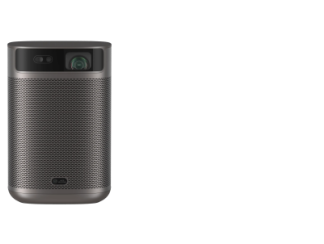
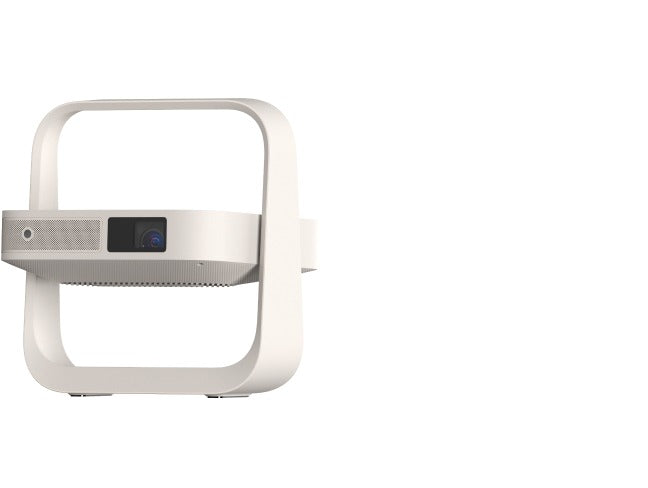
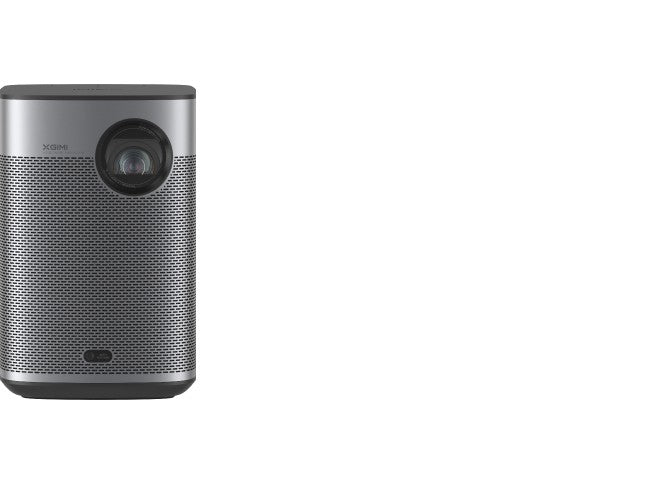
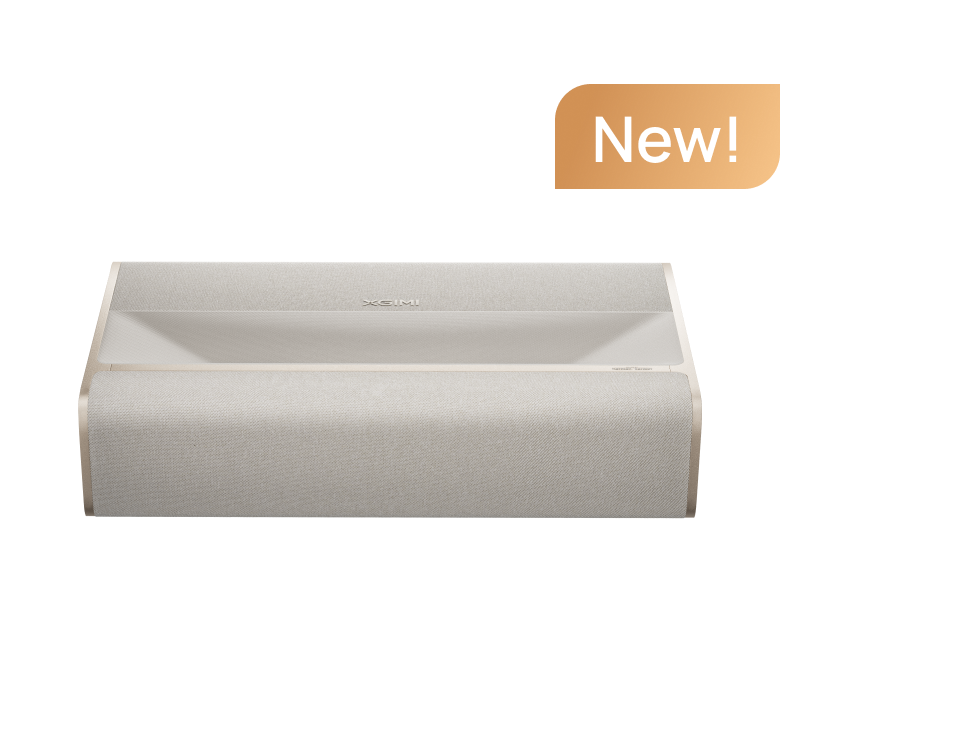
If you plan to watch streaming platforms frequently, choose a projector or TV that supports major apps like Netflix natively. XGIMI Google TV projectors are all have built-in Licensed Netflix App and thousands of other popular streaming apps, such as MoGo 4 Laser, Vibe One (Battery Powered), and more.
What XGIMI Projectors Have Built-in Licensed Netflix App?
Last Updated: 2026.3.10
- MoGo Series: MoGo 3 Pro, MoGo 4, MoGo 4 Laser
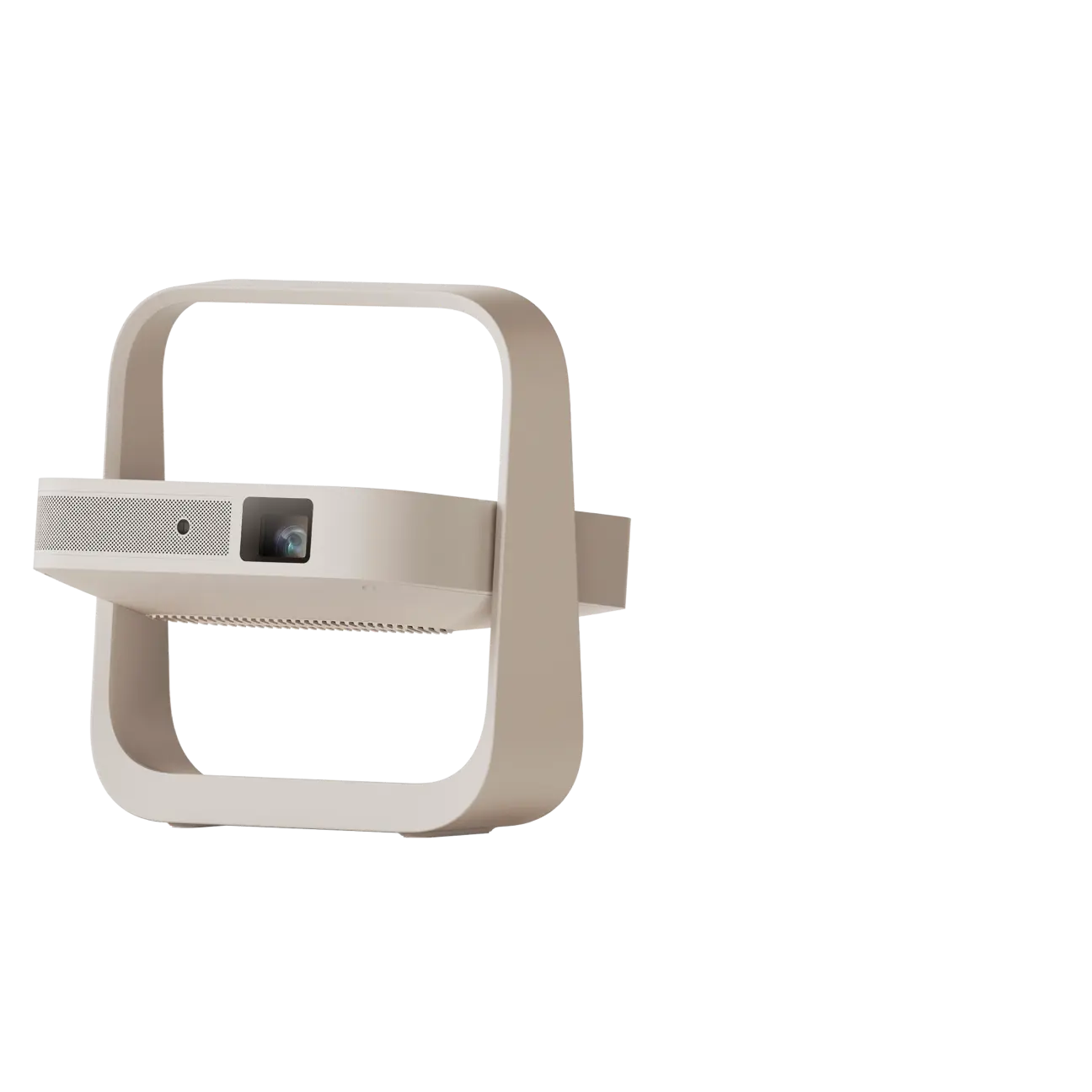
- Elfin Series: Elfin Flip
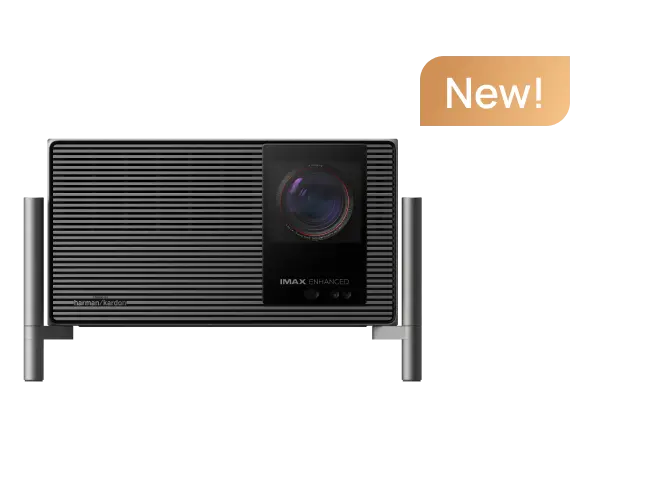
- Halo Series: Halo+ (New)
- HORIZON 20 Series: HORIZON 20 Max, HORIZON 20 Pro, HORIZON 20
- 2025 Latest Model: Vibe One (Battery Powered)
Conclusion
Netflix playback issues usually come down to DRM protection, app compatibility, or connection settings. Fortunately, most problems can be solved with simple troubleshooting or by using a compatible streaming device. Once everything is set up correctly, you can enjoy movies and shows on the big screen without interruption.
Projector Recommendations
Just Play, Your Way
Google TV Smart 1080p Projector On-the-Go

Mini Size,
Maximum Entertainment

Mini Remote Control




Enjoy 10€ off Your Next Purchase
Be the first to know about any news and sales!
*By subscribing, you agree to receive XGIMI's marketing emails and XGIMI's Privacy Policy.